Three steps from a folder of stems to the stage.
No manual warping, no copying tracks between sessions, no rebuilding the same rig every Sunday.
Pick your songs
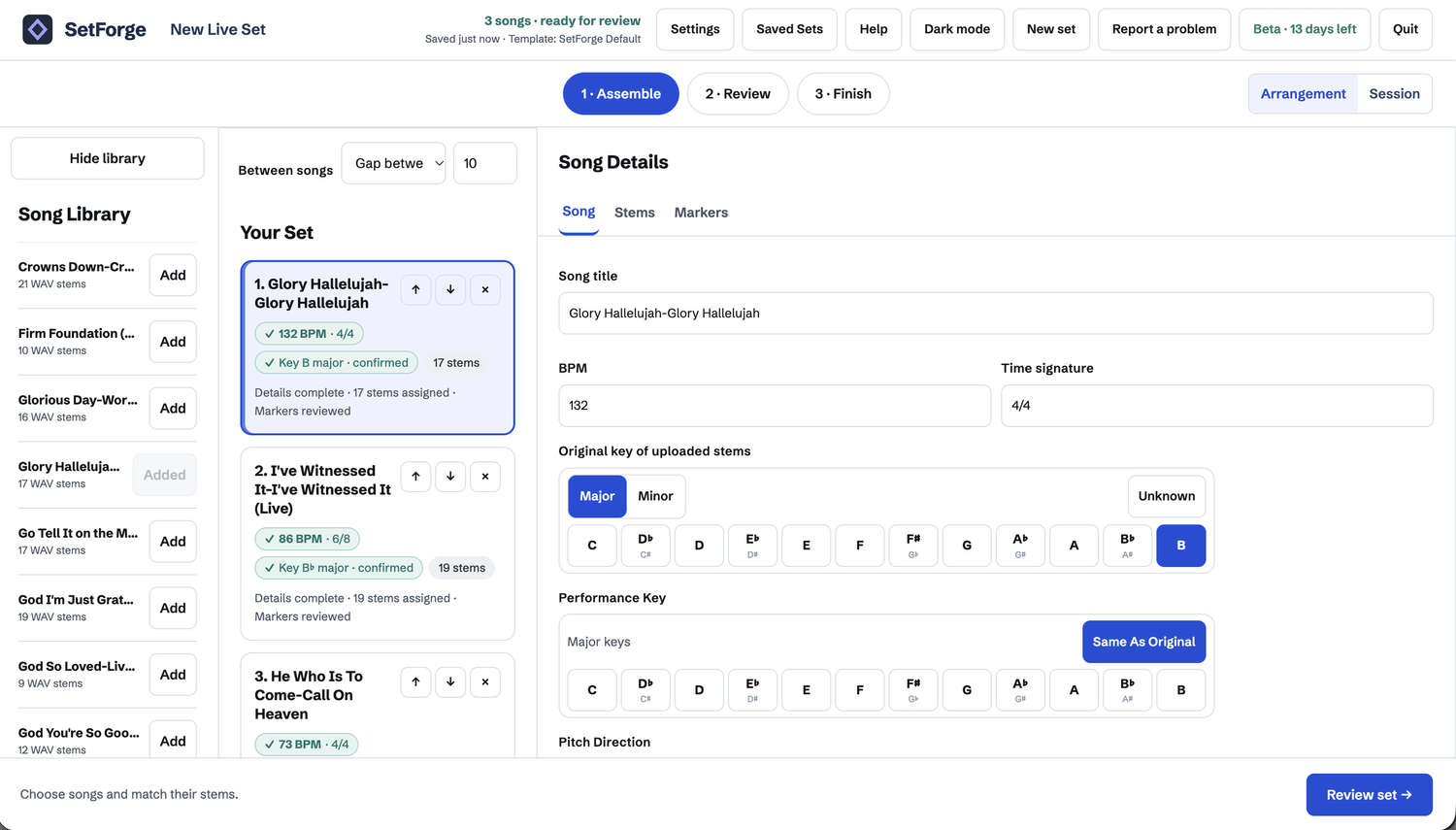
Point SetForge at your stem library, add each song to the set, and confirm its tempo, key and time signature.
Check the arrangement
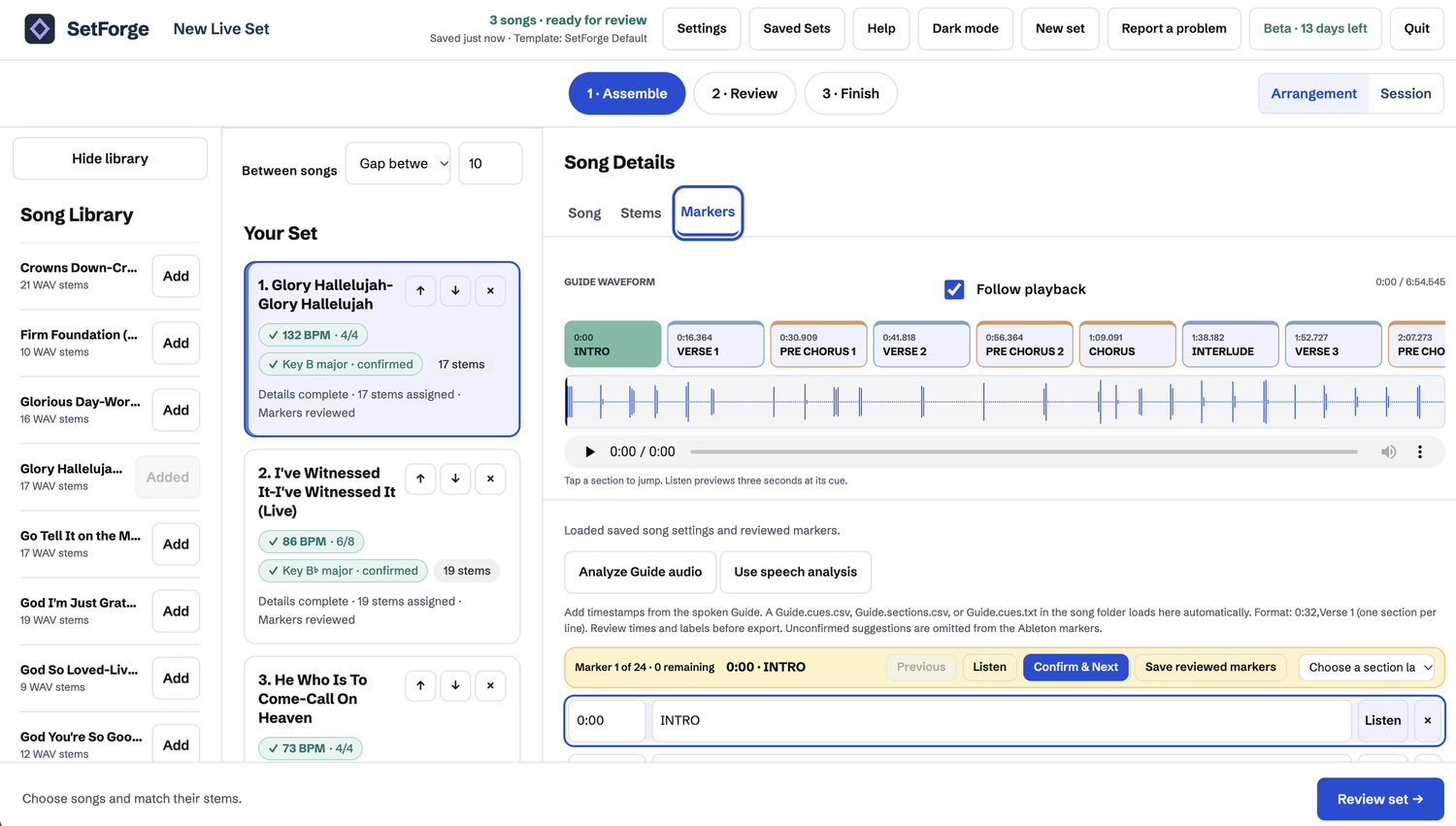
Section markers come from your spoken guide track. Listen to each one, fix what needs fixing, or confirm them all in one click. Preview any stem, including in the performance key.
Open it in Live
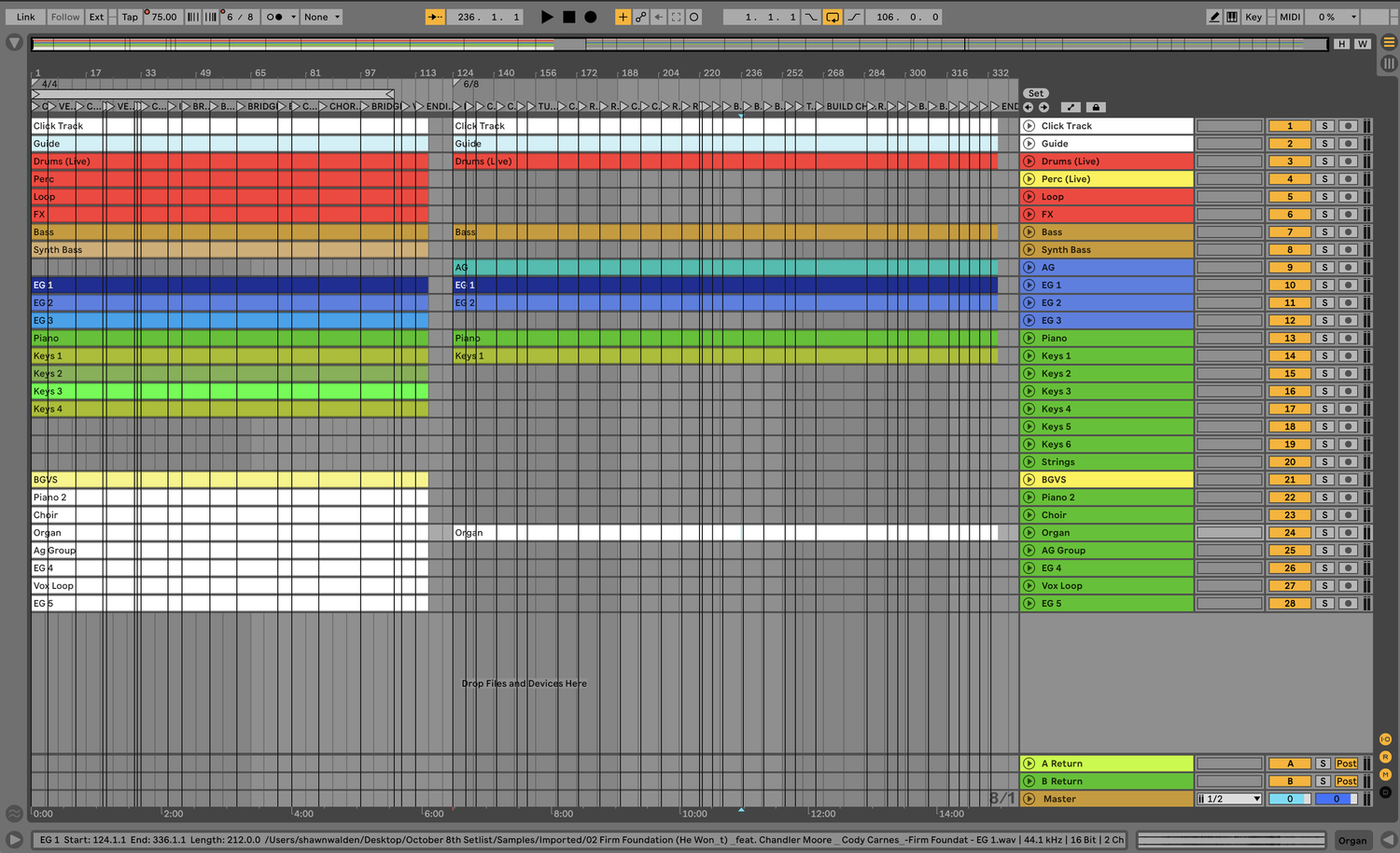
SetForge writes an Ableton project with your stems organized, tempos set and markers in place, then checks that every audio file is where Live expects it.
The workflow, screen by screen.
Already plan in Planning Center? Start there.
Instead of adding songs one by one, connect Planning Center and pick an upcoming service. SetForge matches each song to your stem library. It only reads your plan and never changes anything in Planning Center.
Link your account
Sign in with Planning Center once, or use a personal access token. Your credentials stay on your Mac.
Songs find their stems
Likely matches are pre-checked and anything uncertain is left for you to confirm. SetForge remembers your choices next time.
From plan to set
The service key becomes your performance key when it fits your stems. Then review and build, as usual.